
SaveMyFlow app icon

For Mac, iPhone and iPad

Get interrupted.
Never lose your place.

SaveMyFlow remembers what you were doing when something cuts in. Capture the interruption in a second, park your work with a note, and come back exactly where you left off.

Free on Mac. SaveMyFlow Pro adds sync, the iPhone and iPad app and more.

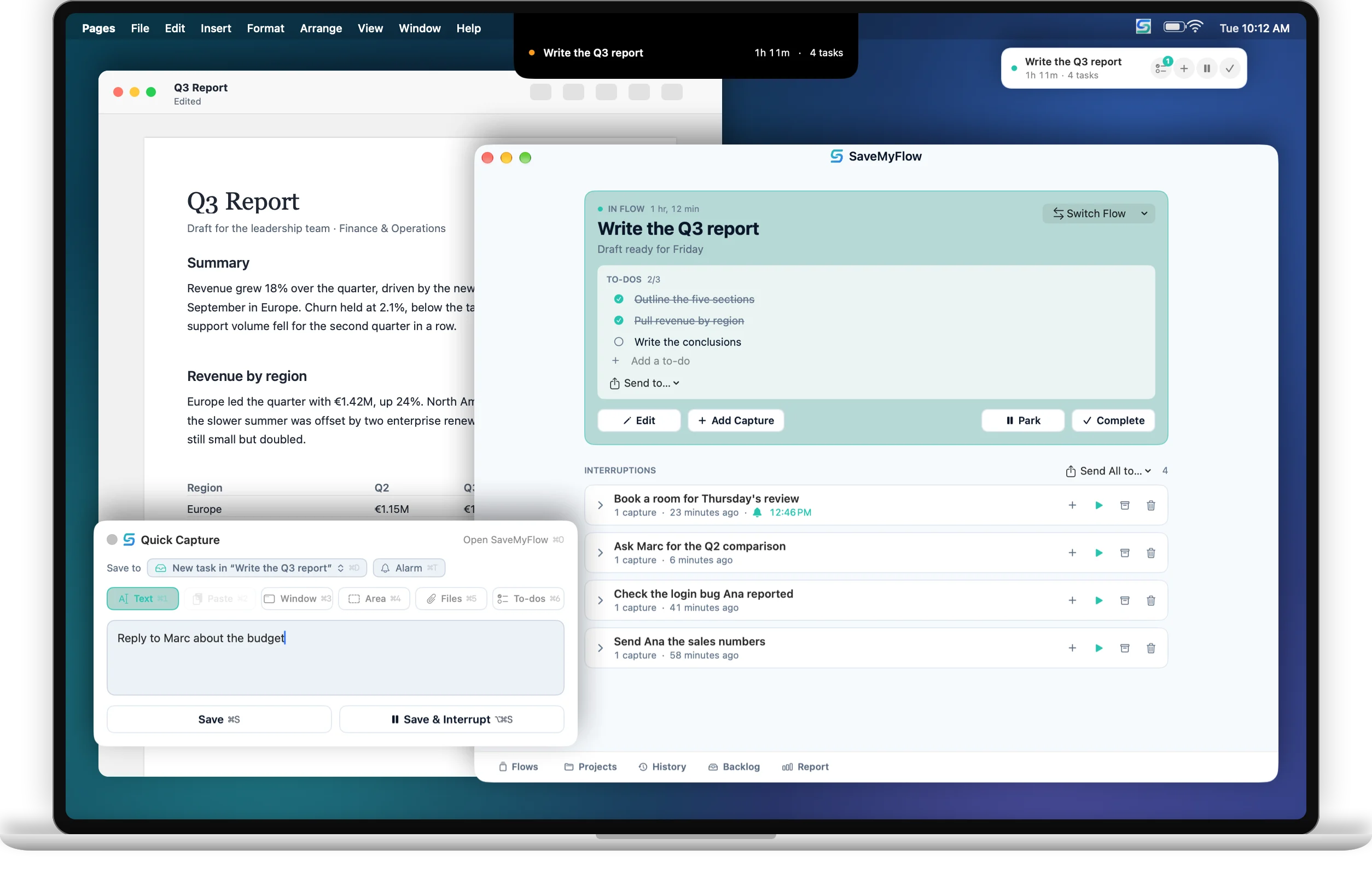
A MacBook with SaveMyFlow: the main window showing the active Flow “Write the Q3 report” with its to-dos and four interruptions, the floating card and the notch showing the same Flow, and the Quick Capture panel open over a report.

The problem

A message, a call, a “quick question”. Each one is small. The cost is what you lose: where you were, what came next, and the twenty minutes it takes to get back into it.

Your to-do app isn't the answer.

It keeps tasks for later. It doesn't remember what you were in the middle of when you got pulled away.

Nor are sticky notes.

Writing things down takes you out of your work, and the note ends up somewhere you won't look.

SaveMyFlow is the missing piece.

It sits between you and the interruption: one keystroke to set it aside, one to go back.

How it works

Four moves. That's the whole app.

Everything in SaveMyFlow is built around one loop: you work on one thing, something interrupts, you deal with it, and you get back.

Start a Flow

A Flow is what you're working on right now: “Write the Q3 report”. Give it a title and, if you like, an objective. One Flow is active at a time, shown in the menu bar and on a small floating card. Between Flows, you can simply be idle.

Capture in a second

Something comes up? Press the shortcut from any app, type a line (or grab a screenshot, a window, a file, a link, a to-do list) and press ⌘ S. It's saved inside your Flow as an interruption to deal with later. You never leave what you're doing. Return just starts a new line, so a slip of the finger never saves half a thought.

⌥ Space capture · ⌘ S save

Interrupt, or park

If it can't wait, choose Interrupt: your Flow is parked and the interruption becomes the active Flow. Or Park it yourself, with a note for later: “Where were you? What's next?”

Not now, but not to be forgotten? With Pro, press ⌘ T to save it with an alarm.

⌥⌘ S interrupt · ⌘ T alarm · ⌃⌥ P park

Resume where you were

When you're done, SaveMyFlow offers to take you back to what you were doing before. A short briefing shows your note, the objective and what you captured (and, with Pro, brings back the apps you had open), so you're back in it in seconds.

⌃⌥ ↩ complete

See it in action

Three moments from a working day.

Real SaveMyFlow windows. The desktop, the pointer and the keys on screen are illustrated.

The concepts

Eleven words, and you know SaveMyFlow.

SaveMyFlow is different from a to-do app, so it uses a few words of its own. Here is what each one means.

Flow

A piece of work you're doing, with a title, an optional objective and a note. Only one is active at a time, or none when you're idle. Others can be parked (paused, waiting for you) or not started (lined up for later).

Capture

Anything you save: a few lines of text, the clipboard, a screenshot of a window or an area, files, a link or a to-do list. Text can have bold, italics, strikethrough and simple lists. Text in screenshots is recognised on your device, so you can search for it later.

Interruption

Whatever came up while you worked. Each capture you save becomes an interruption inside the active Flow, kept until you deal with it. You can rename it, add more captures, move it to another Flow or archive it. If you start one, it becomes a Flow of its own.

Alarm · Pro

An interruption that comes back on its own: in 15 minutes, in an hour, at a time you choose, or when the Flow you're in ends. When it rings, start it as a Flow, snooze it, dismiss the alarm or archive it.

Park

Pause a Flow on purpose, with a note to your future self. With Pro, SaveMyFlow can also keep which apps you had open. Parked Flows wait, and nothing is lost.

Resume

Pick a parked Flow up again. You see a briefing first: your note, the objective and what was captured. With Pro, your apps come back too.

To-dos

Checklists inside a Flow or an interruption. When you complete a Flow with unfinished to-dos, SaveMyFlow asks what to do with them. With Pro, you can send them to Reminders, Things, Todoist and other apps.

Project

A named place to drop ideas without interrupting yourself: “Website”, “Next trip”. Ideas wait there until you start a Flow from one.

Inbox · Pro

What you capture on your iPhone or iPad lands in the Inbox on all your devices, waiting for you to give it a place: a Flow, a project, or a new Flow of its own.

Backlog · Pro

Every interruption from every Flow, plus all your project ideas, in one list. Filter, merge, move, archive or turn them into Flows in bulk.

History

Completed Flows, with everything they contained, ready to look back on. The free version lists the last 30 days. Older Flows are still kept and exported, just not listed.

A day with SaveMyFlow

What it looks like in practice.

Start the day's work

You start a Flow called “Write the Q3 report”, with the objective “Draft ready for Friday”. The card in the corner shows it all day.

A message about a bug

It can wait. ⌥ Space, type “Check the login bug Ana reported”, ⌘ S. It's saved as an interruption in your Flow, and you didn't leave your document.

A call to return at four

Not now, but it mustn't slip. ⌥ Space, “Call Marta back”, then ⌘ T until it says Custom, type 16:00 and ⌘ S. At four, with Pro, the floating card flashes until you answer it.

An idea for later

In the capture panel you pick your “Website” project and save the idea there. Your report stays untouched.

Something urgent

This time it can't wait. Capture it and press ⌥⌘ S Interrupt. The report is parked and the urgent task becomes your active Flow. With Pro, the report's apps step out of the way.

Done. Back to the report?

You complete the urgent task and SaveMyFlow asks whether to go back to “Write the Q3 report”. The briefing shows your note and what you'd captured. You're back in under a minute.

Lunch

You lock your Mac. With Pro, your Flow is parked automatically and offered back when you return.

On the way home

You remember something. Share it from any iPhone app, or tap the widget. It's in your Inbox on the Mac tomorrow morning.
Features

Built to stay out of your way.

SaveMyFlow lives in your menu bar. It only takes over the screen when you ask it to.

Capture panel

Six ways to capture, one shortcut.

Text, Paste, Window, Area, Files and To-dos. Drag files, an email from Mail or a page from your browser onto the panel and it keeps the title. Add several attachments to one capture, format the text, and pick where it goes with ⌘D: the active Flow or a project.

Text ⌘1PasteWindowAreaFilesTo-dos ⌘6

Always visible

Your Flow, on every screen.

A small floating card shows what you're on and for how long, with Park and Complete one click away. When you're idle, it takes you back to your last Flow or any other. Choose glass, solid or a bright colour, on one display or all of them. On a Mac with a notch, you can also move the pointer over the notch to see your Flow.

Keyboard first

Every action has a key.

Switch Flow with ⌘K, search with ⌘F, park with ⌘P, add a to-do with ⌘T. You can change the global shortcuts.

Search

Find anything you saved.

Flows, interruptions, projects and captures. With Pro, search also finds text inside your screenshots.

Pro · Desktop per Flow

Each Flow gets its own desktop.

When you interrupt, the other apps are hidden. When you go back, your Flow's apps return in order, and SaveMyFlow offers to reopen any you closed.

Pro · Send to…

Your to-dos, in the app you already use.

Send to-dos or interruptions to another app in one step. It's one way: SaveMyFlow creates them there and remembers where each one went.

RemindersThings 3OmniFocusTickTickTodoistNotionCraftShortcuts

Pro · Automations

Parks itself when life happens.

Park when you lock your Mac or it goes to sleep. Get reminded of Flows you parked hours ago. Park when a meeting starts and get it back when the meeting ends, with the option of a Flow for the meeting itself. Let a Focus on your Mac pick up a Flow and hide the card and the notch. Run actions from Shortcuts, Siri and Spotlight.

Pro · Alarms

Later, without forgetting.

Press ⌘T in the capture panel: in 15 minutes, 30 minutes, an hour, when this Flow ends, or a time you type. When it's due, you get a notification and the floating card flashes, with Start Flow, Snooze, Dismiss and Archive. If you turn on the notch, it opens there on that display, and on the card on any other. Your iPhone and iPad can ring too, if you turn it on there.

Pro · Weekly report

See what really breaks your focus.

How many interruptions you had this week, which ones actually made you stop (“broke your flow”) and which could wait, the hours with the most, and the apps and Flows they came from. Compare with the week before.

Mac, iPhone and iPad

Your work is on the Mac.
Interruptions come from everywhere.

The Mac is where you work in Flows. Your iPhone and iPad catch whatever comes up when you're away, and it's all kept in sync through your own iCloud.

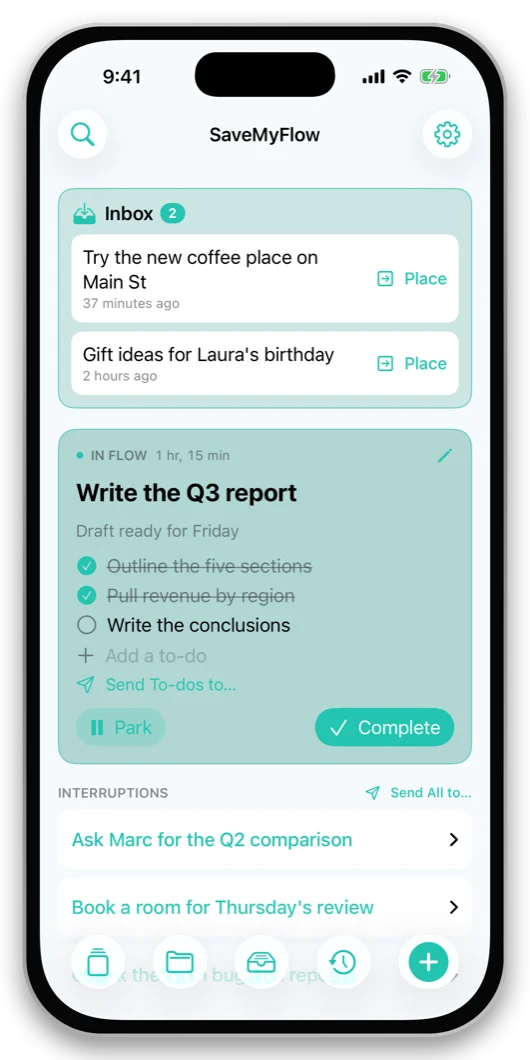
SaveMyFlow on iPhone: the Inbox with two notes, the active Flow “Write the Q3 report” with its to-dos, and its interruptions.

The same Flow, in your pocket.

Open SaveMyFlow on your iPhone and you're where you left off on the Mac: the Flow you're in, its to-dos and the interruptions waiting for it. What you capture on the go lands in the Inbox.

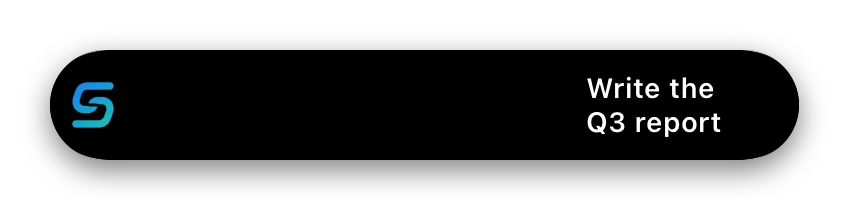
The Dynamic Island showing the SaveMyFlow logo and “Write the Q3 report”.
Live Activity: your active Flow in the Dynamic Island and on the Lock Screen, with a Park button. It also shows up in the Smart Stack on Apple Watch.

Mac

The full app, from the menu bar. Free.

  • Menu bar: your active Flow and quick actions
  • Capture panel from any app
  • Floating card on every display
  • Window with your Flow, its to-dos and interruptions

Requires macOS 14 Sonoma or later.

iPhone

Your Mac, in your pocket. Part of Pro.

  • Share Sheet: send text, links and photos to your Inbox from any app
  • Widget: your active Flow, the Inbox, and capture with one tap
  • Control Center: Capture, and Park or Resume
  • Live Activity: your active Flow on the Lock Screen and in the Dynamic Island, with a Park button
  • The app: Inbox, active Flow, to-dos, Projects, Backlog and History

Requires iOS 26 or later.

iPad

The iPhone app with a sidebar. Part of Pro.

  • Sidebar: Now, Flows, Projects, Backlog, History, Search
  • Keyboard: ⌘N to capture
  • Split View and Slide Over
  • Same Share Sheet, widget and controls

Requires iPadOS 26 or later.

Pricing

Free on the Mac. Pro when you want more.

One purchase covers your Mac, iPhone and iPad.

SaveMyFlow

Free, for Mac

  • Flows: start, park with a note, resume with a briefing, complete
  • The capture panel, with all six sources and a global shortcut
  • Interruptions, to-do lists and Projects
  • Menu bar, floating card, notch and keyboard shortcuts
  • Search by title and by what you wrote
  • History of the last 30 daysOlder Flows are kept, just not listed
  • Export everything, any time, as JSON or Markdown

SaveMyFlow Pro

Everything in Free, plus:

Monthly€2.99per month
Yearly€19.99per year
14 days free
Lifetime€39.99one purchase
  • Sync between Mac, iPhone and iPad through your iCloud
  • The iPhone and iPad app, Share Sheet, widget, Control Center and Live Activity
  • The Inbox for what you capture on the go
  • A desktop for each Flow, and the apps you had open when you parked
  • Alarms on interruptions, on your Mac (also in the notch) and, if you want, on your iPhone and iPad
  • Send to-dos and interruptions to Reminders, Things, OmniFocus, TickTick, Todoist, Notion and Craft
  • Backlog, weekly interruption report and unlimited history
  • Search inside screenshot text
  • Automations, a Focus filter, and actions for Shortcuts, Siri and Spotlight

Prices in euros, VAT included. The App Store shows the price for your country before you buy. Subscriptions are paid through your Apple Account and renew automatically unless cancelled at least 24 hours before the end of the current period. You can manage or cancel them in your Apple Account settings. The free trial applies to the yearly plan for eligible new subscribers. If Pro ends, nothing is deleted: Pro features pause and your data stays on your devices. See the Terms of Use and the Privacy Policy.

Privacy

Your focus is your business.

SaveMyFlow doesn't collect any data. There's no account to create, there are no servers of ours, and nothing tracks you.

On your device

Your Flows and captures are stored on your device. Text in screenshots is read on the device too.

Your own iCloud

With Pro, sync goes through your private iCloud database. We can't see it.

No tracking

No analytics, no ads, no third-party code that tracks you.

Always yours

Export everything for free at any time, as JSON or Markdown.

Read the Privacy Policy ›

Questions

Good to know.

Is SaveMyFlow a to-do app?

No. A to-do app keeps a list of what you need to do. SaveMyFlow keeps track of what you're doing right now and protects it when something interrupts. It works alongside your to-do app, and with Pro it can send to-dos to it.

What's the difference between saving a capture and interrupting?

Save (⌘ S) keeps the capture as an interruption in your current Flow and you carry on working. Interrupt (⌥⌘ S) parks your current Flow and makes the capture your active Flow, because it needs your attention now. When you finish it, SaveMyFlow offers to take you back.

What happens when I park a Flow?

It's paused and kept with a note about where you were and what comes next. With Pro, SaveMyFlow also keeps the apps you had open. When you resume it, you see that briefing first.

What happens to its interruptions when I complete a Flow?

If some are still open, SaveMyFlow asks what to do with all of them: move them to another open Flow, turn them into Flows of their own, archive them, or leave them in history with the Flow. Only moving them keeps their alarms. One ⌘ Z undoes it all.

Do I need the iPhone app?

No. SaveMyFlow on the Mac is complete and free. The iPhone and iPad app is part of Pro: it's for catching things when you're away from your Mac, and it needs sync to get them there.

What permissions does it ask for?
  • Screen Recording: only to capture a window or an area of the screen.
  • Notifications: for alarms and reminders. Asked the first time you set an alarm or turn on a reminder.
  • Reminders: only if you send to-dos to Reminders.
  • Calendars: only if you turn on “park when a meeting starts”.
  • Camera on iPhone and iPad: only to take a photo straight into your Inbox.
What happens to my data if I stop paying for Pro?

Nothing is deleted. Sync pauses and the Pro features stop, but everything you saved stays on your devices, and you can always export it.

Can I use one purchase on all my devices?

Yes. Pro is bought once for Mac, iPhone and iPad with the same Apple Account. Use “Restore Purchases” in the app if a device doesn't see it.

More answers in Support.

Protect your focus.

Download SaveMyFlow for Mac for free. Try Pro free for 14 days with the yearly plan.

Download on theApp Store